User Manual
Everything you need to scale recipes, plan batches and time every bake, with your recipes synced privately through iCloud.
Download on the App Store1Getting started
A short tour
The first time you open MicroBakery 2, a short illustrated tour shows you the main gestures. Watch it again any time in Settings › Show the tour.
Upgrading from MicroBakery 1
Nothing to do. At first launch, your recipes, favourites, hidden recipes and saved batches move over automatically, and Premium stays active. If you used a MicroBakery 1 cloud account, its recipes can be imported too (section 11).
2The main screen
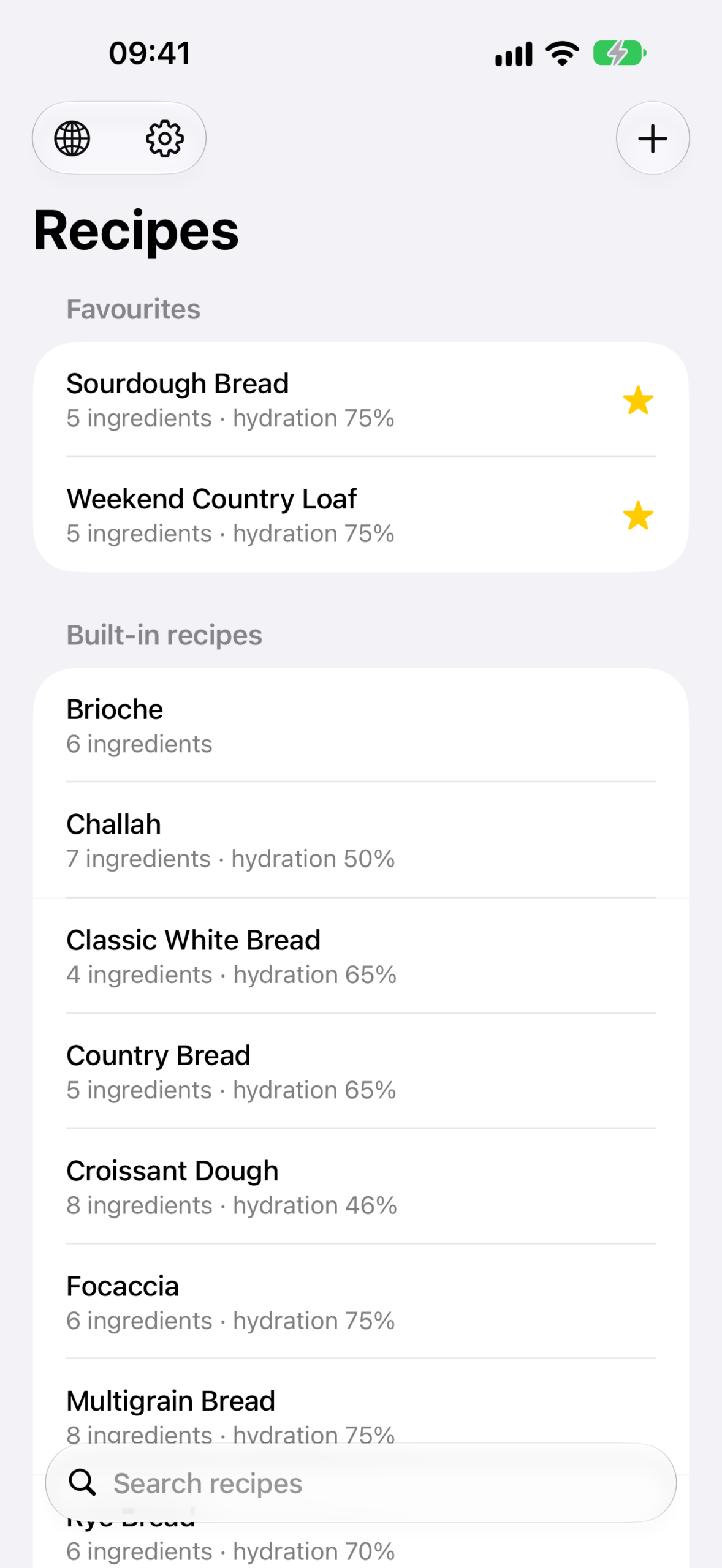
The main screen is your recipe list, in three groups:
- Favourites ⭐ — the recipes you use most, always at the top.
- My recipes — the recipes you created (Premium).
- Built-in recipes — eleven classic breads, from Sourdough and Country Bread to Brioche, Challah and Focaccia.
Each recipe shows its number of ingredients and its hydration.
At the top
- 🌐 Language — choose the app’s language.
- ⚙︎ Settings.
- + New recipe (Premium; shows a lock 🔒 otherwise).
At the bottom, Search recipes finds a recipe by name, in the app’s language.
3Managing recipes
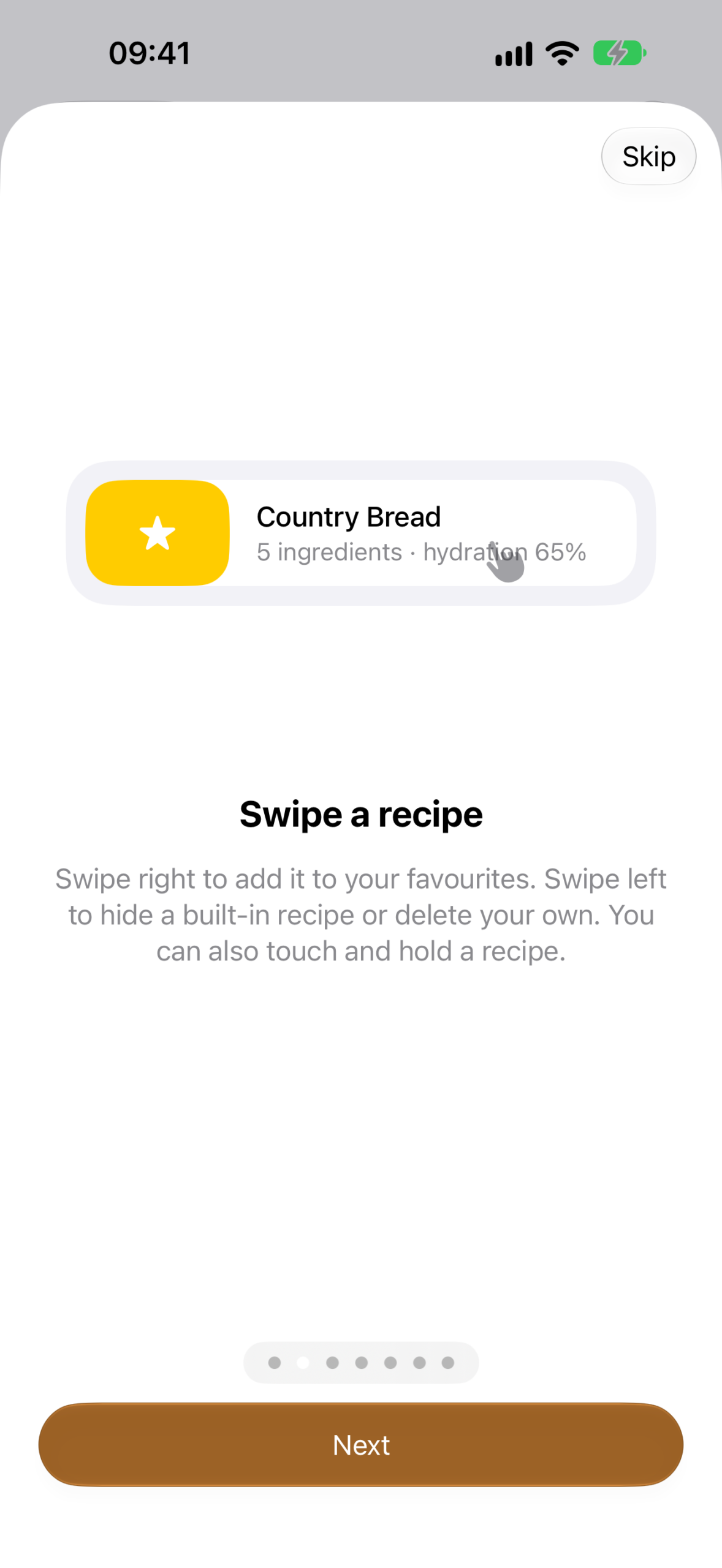
- Open a recipe: tap it.
- Add to favourites: swipe the recipe right ⭐. Swipe again to remove it.
- Hide a built-in recipe: swipe left › Hide. Bring it back in Settings › Show hidden built-in recipes.
- Delete your own recipe: swipe left › Delete, then confirm. It’s removed from all your devices.
- Not a fan of swiping? Touch and hold a recipe for the same actions.
Inside a recipe, the ⋯ menu (top right) offers Edit recipe and Duplicate (Premium), Reset batch, and Hide this recipe / Delete recipe.
Creating and editing recipes (Premium)
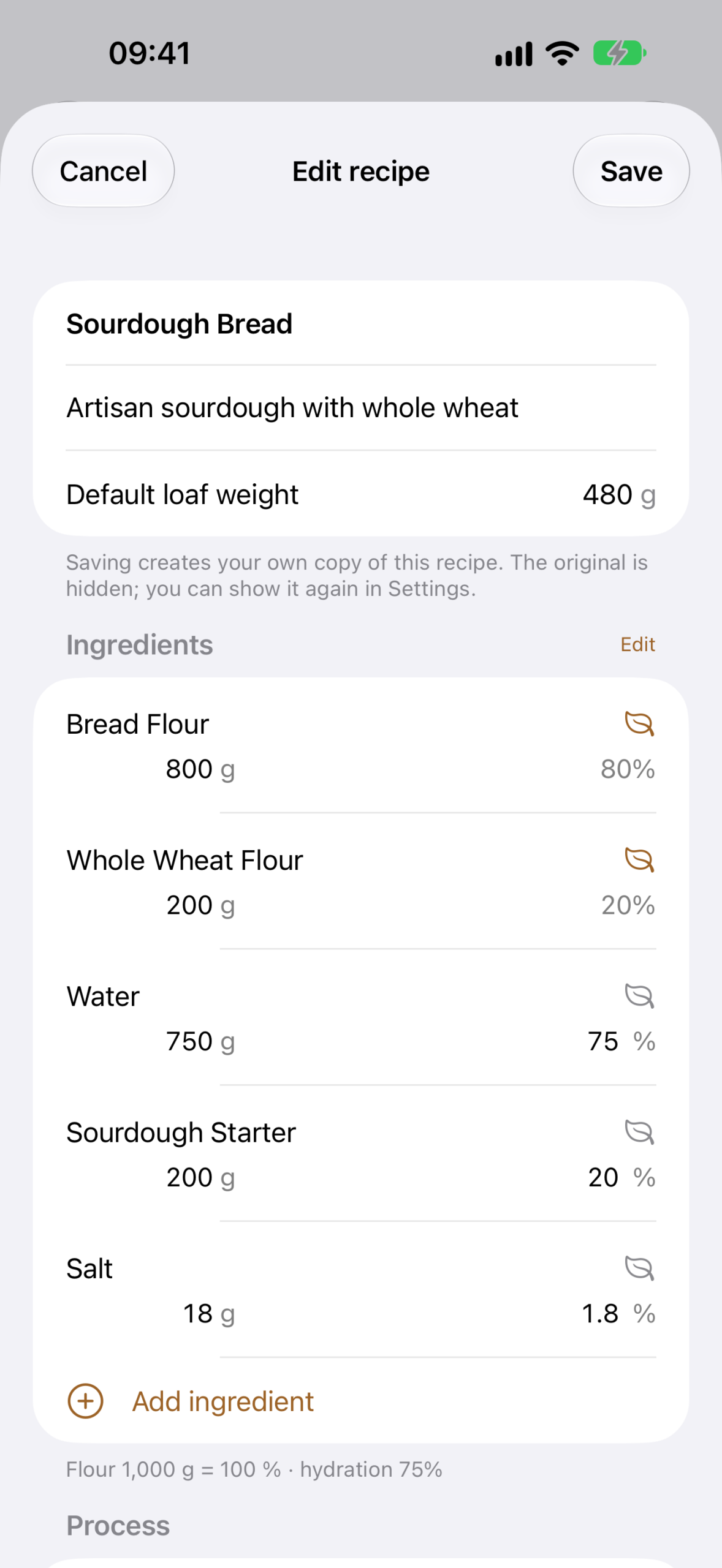
Tap + in the recipe list, or Edit recipe in the ⋯ menu.
- Give the recipe a name, a description and a default loaf weight.
- For each ingredient, type either the weight or the percentage: the other value is calculated for you.
- Tick the flour icon on every flour: all flours together make 100 % (two flours of 500 g = 1,000 g = 100 %).
- The bottom line shows the total flour and the hydration.
Duplicate makes a copy named “… (copy)” that you can change freely.
4Calculating a batch
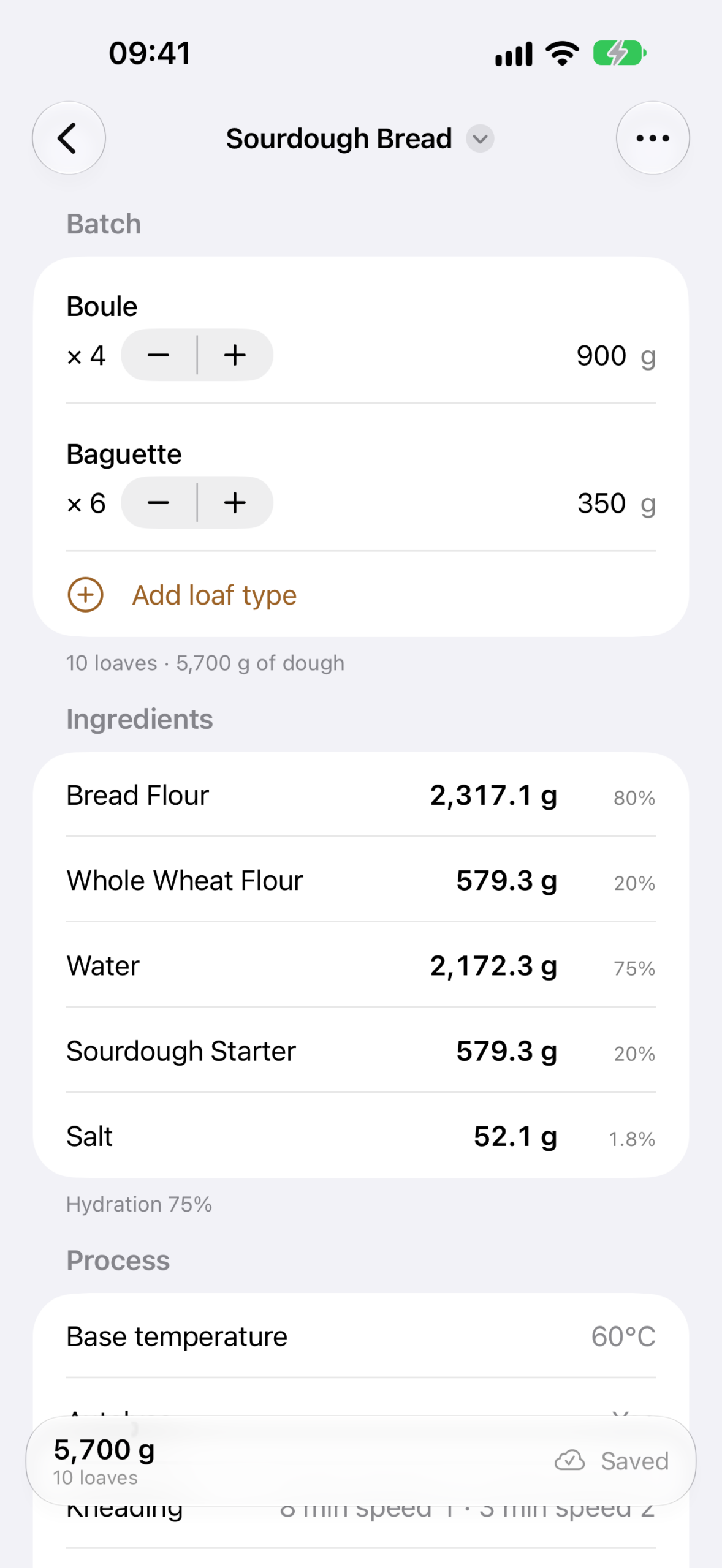
Open a recipe. The Batch section at the top lists your loaf types:
- Change the number of loaves with – / +.
- Type the weight of one loaf (in grams).
- Add loaf type to mix sizes in one batch — for example 4 boules of 900 g + 6 baguettes of 350 g. Swipe a loaf type left to remove it.
The Ingredients section instantly shows the exact weight of every ingredient for the whole batch, with its baker’s percentage (flour = 100 %), and the hydration below. The bar at the bottom shows the total dough weight and the number of loaves.
Reset batch (⋯ menu) goes back to the recipe’s default batch.
5Baking process & timers
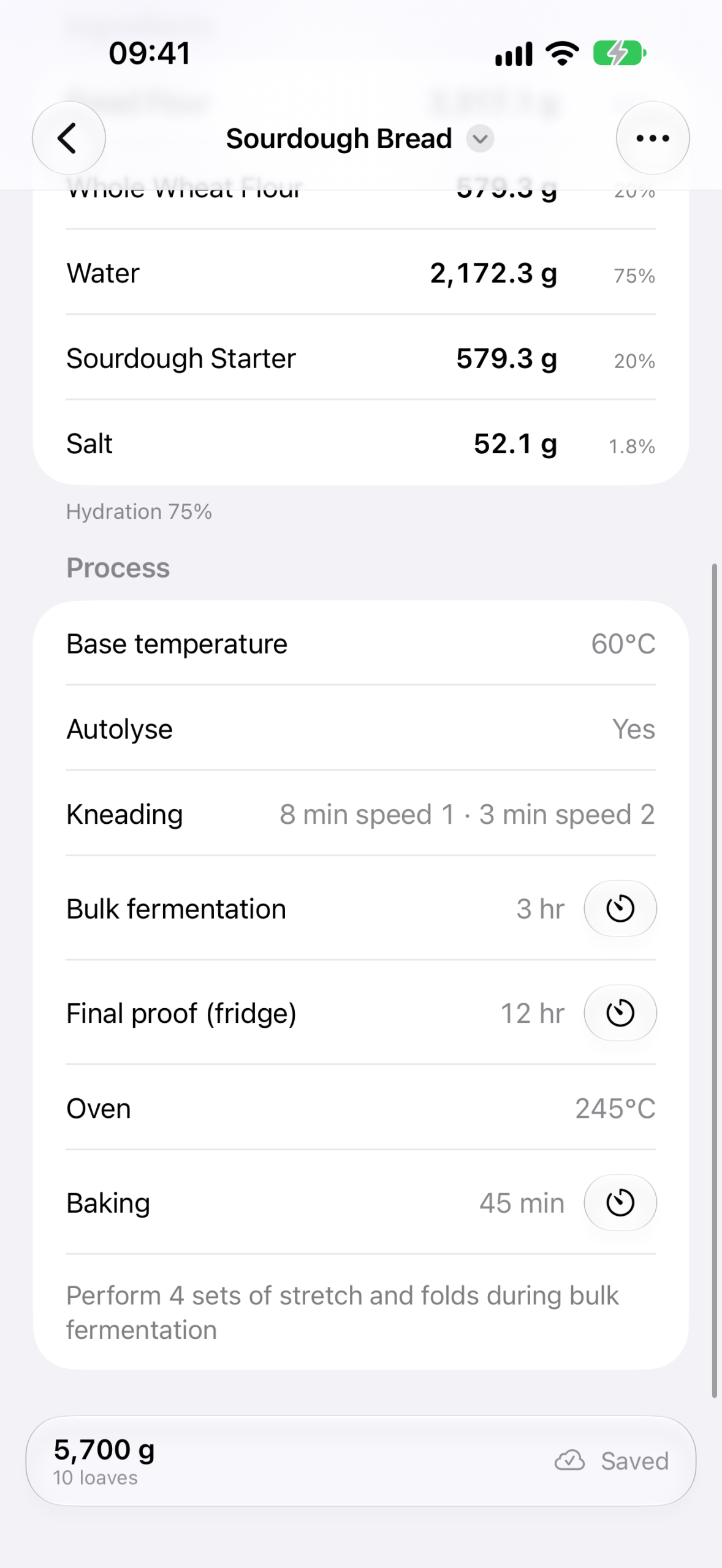
Below the ingredients, the Process section lists the recipe’s steps: base temperature, autolyse, kneading, bulk fermentation, final proof, oven temperature, baking time, and the baker’s notes.
Timers that really ring ⏰
Steps with a duration have a timer button ⏱. Tap it to start a timer for that step.
- The first time, iOS asks whether MicroBakery may use alarms: tap Allow.
- The timer rings like an alarm, even in Silent mode, with a Focus on, or with the app closed.
- The countdown appears on the Lock Screen, in the Dynamic Island (on iPhones that have one) and in StandBy.
- When it rings: Stop, or Snooze to ring again a few minutes later. Set the snooze length in Settings › Timers.
- In the app, running timers show at the bottom right; tap ✕ to cancel one.
6Switching recipes quickly
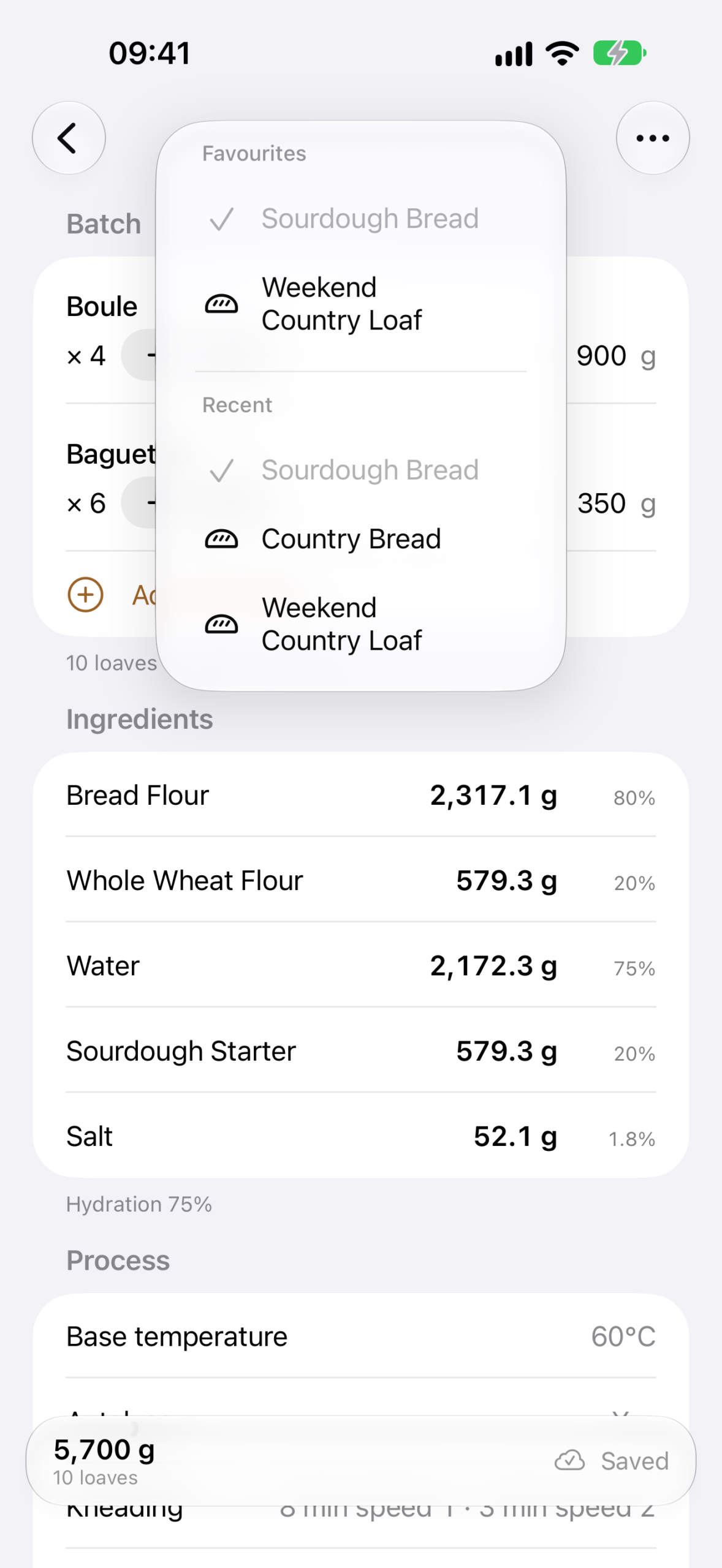
In a recipe, tap its name at the top (next to ⌄): a menu lists your favourites and your recent recipes. Choose one to jump straight to it, without going back to the list.
7iCloud sync
- Sync is free and automatic. It uses the Apple Account signed in on the device, with iCloud turned on (iPhone Settings › [your name] › iCloud).
- What syncs: your recipes, favourites, hidden recipes and batches.
- Settings › iCloud shows the status (On, Off: not signed in to iCloud…) and the time of the last update.
- Changes usually reach your other devices within a few seconds to a few minutes.
8Language
MicroBakery speaks English, Français, Español, Italiano and Deutsch. By default it follows your iPhone’s language; to choose another, tap 🌐 (or Settings › Language).
The interface, built-in recipes, ingredients, process steps, timers and alarms are translated. The names you type yourself (your recipes, ingredients, loaf types) stay exactly as you wrote them.
10Settings ⚙︎
| Setting | What it does |
|---|---|
| Language | App language (or Use iPhone language) |
| iCloud | Sync status and last update |
| Premium | Unlock Premium, Restore purchases |
| Recipes | Show hidden built-in recipes |
| Timers | Snooze length (1, 2, 5, 10 or 15 min) |
| MicroBakery 1 account | Import, sign out or delete an old account (section 11) |
| Delete all my data | Removes your recipes, favourites, hidden recipes and batches on all your devices (built-in recipes stay) |
| About | App version, Show the tour |
11MicroBakery 1 account & your data
MicroBakery 2 no longer needs an account. The MicroBakery 1 account section in Settings is only for people who used a cloud account in MicroBakery 1:
- Import from a MicroBakery 1 account: sign in with your old email and password to bring in recipes saved in that account.
- Still signed in? Once its recipes are imported (Settings shows the date), the account is no longer needed. A reminder appears at the top of the recipe list; Not now hides it for 30 days.
- Delete my MicroBakery 1 account: deletes the old account and its old cloud copy for good. Your recipes in MicroBakery 2 stay. You may be asked for your password again. Do this only if MicroBakery 1 is no longer used on another device.
- Sign out and keep the account: disconnects the old account without deleting anything.
12Troubleshooting
My recipes don’t appear on my other device
Check that both devices use the same Apple Account and that Settings › iCloud says On. Open the app on both devices, with a connection, and wait a minute.
A built-in recipe has disappeared
It was probably hidden: Settings › Show hidden built-in recipes.
The timer doesn’t ring
Check that alarms are allowed for MicroBakery in the iPhone Settings › MicroBakery. If you refused them, timers use notifications, which can be silent in Silent mode.
Premium isn’t active on a device
Make sure you’re signed in with the Apple Account you bought it with, then Settings › Restore purchases. Premium also refreshes when you come back to the app.
Wrong quantities?
Check the loaf weights in the batch and, in the editor, that every flour has its flour icon ticked (all flours = 100 %).
Part of the app is in the wrong language
Choose the language with 🌐. Your own recipe and ingredient names are never translated.